
# Lua Guide
This guide describes the current Lua API. Older builds may not include newer functions or options; check your installed version before using them.
# Usage
For installation, recording, playback and license setup, start with the user guide. This page covers Lua scripting and the built-in API. JavaScript scripts and index.js package entry points are not supported by current builds.
# Quick start
Create hello.lua in AutoTouch, save it, then select it from the control panel:
log("AutoTouch " .. getVersion())
local width, height = getScreenResolution()
if not width or not height then
    alert("Screen dimensions are not available. Check the device and try again.")
    return
end
alert(string.format("Hello! Screen: %d × %d pixels", width, height))
Built-in functions such as tap, findImage and dialog are available without require. Libraries such as json use require("json"). Hold Volume Down to stop a running script. Use log() to inspect progress in the runtime log.
# API map
| Task | Functions |
|---|---|
| Touches and buttons | touchDown, tap, keyPress |
| Screen state | getScreenResolution, screenshot, unlockScreen |
| Colors and images | getColors, findColors, findImage |
| Text and dialogs | ocr, inputText, dialog |
| Apps | appRun, appActivate, appInfo |
| Timing and repetition | usleep, keep, setTimer |
| Paths and diagnostics | rootDir, currentDir, captureDebugInfo |
# Paths and packages
A package is a directory ending in .at, with main.lua as its entry point:
MyProject.at/
  main.lua
  images/
    button.PNG
  helpers.lua
From main.lua, use findImage({image = "images/button.PNG"}). Image paths are relative to the running script; an absolute path starts with /. File names must match the actual file, including its extension. A Photos album entry is not a file path: import the image into the project first.
currentDir() is the runtime directory, which can be temporary for encrypted packages. botPath() identifies the original script/package. Use rootDir() to locate the persistent scripts directory instead of hard-coding a jailbreak-specific path. Native APIs document their path rules individually; for Lua file I/O, an explicit path avoids reliance on the process working directory.
# Lua basics
AutoTouch uses Lua 5.3. See the Lua reference manual (opens new window) for language syntax. Lua arrays start at 1; screen coordinates start at 0. Booleans are true and false, and an absent value is nil.
For debugging, start with a small script and log intermediate values. A missing image or invalid option can raise a Lua error. Use pcall around an operation when your script needs to recover; do not treat an error as an empty search result.
# Coordinate, Size and Orientation System
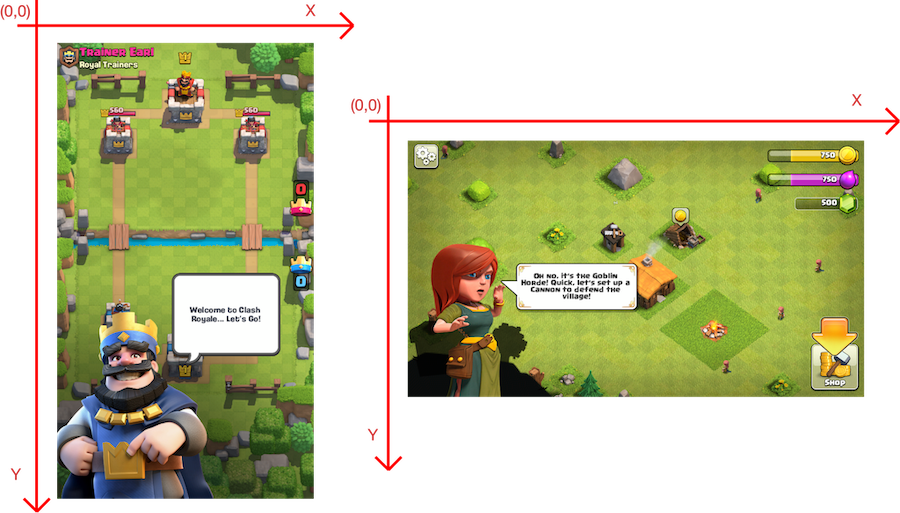
AutoTouch touch and image APIs use native screen pixels. Read getScreenResolution() for the current orientation instead of copying dimensions from another device. The call can return nil, nil if display state is unavailable.
The origin (0, 0) is the top-left of the current application interface; x increases to the right and y downward. A search region is {x, y, width, height}, not two corner points. Touch coordinates must be inside the screen. Re-read dimensions after rotation.
Do not mix physical device orientation (getOrientation()) with interface orientation (frontMostAppOrientation()). Searches within a region still return full-screen coordinates. Offline image searches return coordinates in the source image.
# Extension Libraries
Built-in libraries are listed below. Place your own Lua modules alongside the script/package and load them with require. Inspect package.path and package.cpath when diagnosing module lookup; native .so modules must match the device architecture and Lua ABI. Do not name a script after a library it imports (for example json.lua, lcurl.lua, or lfs.lua).
# LuaCURL
Use lcurl for HTTP requests. See the Lua-cURL reference (opens new window) for supported options.
local curl = require("lcurl")
local chunks = {}
local request = curl.easy({
    url = "https://autotouch.net/",
    timeout = 10,
    writefunction = function(chunk)
        chunks[#chunks + 1] = chunk
        return #chunk
    end,
})
local ok, err = pcall(function() request:perform() end)
request:close()
if ok then
    log(table.concat(chunks))
else
    log("HTTP request failed: " .. tostring(err))
end
# LuaSocket
LuaSocket is a Lua extension library which supported TCP (opens new window), UDP (opens new window), SMTP (opens new window), HTTP (opens new window), FTP (opens new window) protocols. Learn how to use it from the Learn More (opens new window).
# LuaSec
LuaSec is a binding for OpenSSL library to provide TLS/SSL communication. It takes an already established TCP connection and creates a secure session between the peers.Learn More (opens new window)
# LuaSqlite3
LuaSQLite 3 is a thin wrapper around the public domain SQLite3 database engine. Learn More (opens new window)
# json.lua
json.lua provides operation methods on json. GitHub (opens new window) LICENSE (opens new window)
Usage
local json = require "json"
local jsonString =json.encode({ 1, 2, 3, { x = 10 } }) -- Returns '[1,2,3,{"x":10}]'
local luaTable = json.decode('[1,2,3,{"x":10}]') -- Returns { 1, 2, 3, { x = 10 } }
# Plist
Plist library provides a batch of methods to operate on plist files.
Usage
local plist = require("plist")

-- Read a plist file, return it as a lua table, return nil if failed.
local luaTable = plist.read(plistFilePath);

-- Write a lua table as a plist into a file, the format parameter specifies "xml", "binary" you want to write with.
local done = plist.write(luaTable, plistFilePath, format);

-- Load a plist string to lua table.
local luaTable = plist.load(plistString);

-- Dump a lua table to plist data with format "xml" or "binary"
local plistData = plist.dump(luaTable, format);
# Penlight
A set of pure Lua libraries focusing on input data handling (such as reading configuration files), functional programming (such as map, reduce, placeholder expressions,etc), and OS path management. GitHub (opens new window) Document (opens new window) LICENSE (opens new window)
It has plenty of modules:
Paths, Files and Directories
path: queries likeisdir,isfile,exists, splitting paths likedirnameandbasenamedir: listing files in directories (getfiles,getallfiles) and creating/removing directory pathsfile:copy,move; read/write contents withreadandwrite
Application Support
app:require_hereto rebaserequireto work with main script path; simple argument parsingparse_argslapp: sophisticated usage-text-driven argument parsing for applicationsconfig: flexibly read Unix config files and Windows INI filesstrict: check for undefined global variables - can usestrict.modulefor modulesutils,compat: Penlight support for unified Lua 5.1/5.2 codebasestypes: predicates likeis_callableandis_integer; extendedtypefunction.
Extra String Operations
utils: can split a string with a delimiter usingutils.splitstringx: extended string functions covering the Pythonstringtypestringio: open strings for reading, and creating strings using standard Lua IO methodslexer: lexical scanner for splitting text into tokens; special cases for Lua and Ctext: indenting and dedenting text, wrapping paragraphs; optionally make%work as in Pythontemplate: small but powerful template expansion enginesip: Simple Input Patterns - higher-level string patterns for parsing text
Extra Table Operations
tablex: copying, comparing and mapping overpretty: pretty-printing Lua tables, and various safe ways to load Lua as dataList: implementation of Python 'list' type - slices, concatenation and partitioningMap,Set,OrderedMap: classes for specialized kinds of tablesdata: reading tabular data into 2D arrays and efficient queriesarray2d: operations on 2D arrayspermute: generate permutations
Iterators, OOP and Functional
seq: working with iterator pipelines; collecting iterators as tablesclass: a simple reusable class frameworkfunc: symbolic manipulation of expressions and lambda expressionsutils:utils.string_lambdaconverts short strings like|x| x^2into functionscomprehension: list comprehensions:C'x for x=1,4'()=={1,2,3,4}
# LuaFileSystem
LuaFileSystem is a Lua library developed to complement the set of functions related to file systems offered by the standard Lua distribution. LuaFileSystem offers a portable way to access the underlying directory structure and file attributes.Learn More (opens new window)
# WebSocket
This module provides Lua modules for Websocket Version 13 (opens new window) conformant clients and servers.
GitHub (opens new window) LICENSE (opens new window) Examples (opens new window)
Usage
-- Client
-- connects to a echo websocket server running a localhost:8080
-- sends a string every second and prints the echoed messages
-- to stdout

local ev = require'ev'
local ws_client = require('websocket.client').ev()

ws_client:on_open(function()
    print('connected')
  end)

-- Replace with a WebSocket echo server you control.
ws_client:connect('ws://127.0.0.1:8080','echo')

ws_client:on_message(function(ws, msg)
    print('received',msg)
  end)

local i = 0

ev.Timer.new(function()
    i = i + 1
    ws_client:send('hello '..i)
end,1,1):start(ev.Loop.default)

ev.Loop.default:loop()
# Extension Functions
These functions provide touch input, screen capture, recognition, app control and script utilities.
Version compatibility
This reference follows the current source. Historical version badges indicate when a function was introduced; unmarked entries are not a guarantee of availability in every older build. Use release notes and the installed version when migrating scripts.
# touchDown(id, x, y)
Press the coordinate (x,y) on the screen.
Parameters
| Parameter | Type | Specification |
|---|---|---|
| id | Integer | Finger ID. is used to mark a finger in single-touch or multi-touch. |
| x | Float | x-coordinate on the screen |
| y | Float | y-coordinate on the screen |
Return
None
Examples
-- Hold one finger briefly, then release it.
touchDown(0, 100, 200)
usleep(16000)
touchUp(0, 100, 200)

-- For an ordinary tap, use the built-in helper.
tap(100, 200)
# touchMove(id, x, y)
Move the finger to coordinate (x,y).
Parameters
| Parameter | Type | Specification |
|---|---|---|
| id | Integer | Finger ID. is used to mark a finger in single-touch or multi-touch. |
| x | Float | x-coordinate on the screen |
| y | Float | y-coordinate on the screen |
Return
None
Examples
-- Move one held finger, then release it at the final coordinate.
touchDown(0, 100, 200)
usleep(16000)
touchMove(0, 200, 200)
usleep(16000)
touchUp(0, 200, 200)
# touchUp(id, x, y)
Lift the finger from coordinate (x,y)
Parameters
| Parameter | Type | Specification |
|---|---|---|
| id | Integer | Finger ID. is used to mark a finger in single-touch or multi-touch. |
| x | Float | x-coordinate on the screen |
| y | Float | y-coordinate on the screen |
Return
None
Examples
-- Click the screen once by one finger at coordinate (100,200).
touchDown(0, 100, 200);
usleep(16000);
touchUp(0, 100, 200);

-- Press by three fingers at three locations on the screen, move to new location, and then lift the finger.
touchDown(0, 100, 200);
touchDown(1, 200, 300);
touchDown(2, 300, 400);
usleep(16000);
touchMove(0, 150, 250);
touchMove(1, 250, 350);
touchMove(2, 350, 450);
usleep(16000);
touchUp(0, 150, 250);
touchUp(1, 250, 350);
touchUp(2, 350, 450);
# keyDown(keyType)
Simulate the pressing of physical key.
Parameters
| Parameter | Type | Specification |
|---|---|---|
| keyType | Integer | Physical key identification. Now you can use these physical keys. |
Return
None
Examples
keyDown(KEY_TYPE.HOME_BUTTON)
usleep(10000)
keyUp(KEY_TYPE.HOME_BUTTON)
-- keyPress(KEY_TYPE.HOME_BUTTON) performs this sequence for you.
# keyUp(keyType)
Simulate the lifting of physical key.
Parameters
| Parameter | Type | Specification |
|---|---|---|
| keyType | Integer | Physical key identification. Now you can use these physical keys. |
Return
None
Examples
-- Simulate the action of pressing and lifting Home Key.
keyDown(KEY_TYPE.HOME_BUTTON);
usleep(10000);
keyUp(KEY_TYPE.HOME_BUTTON);
# unlockScreen([passcode]) 8.6+
Unlock the device to the home screen, natively. This performs the whole sequence — wakes the display, authenticates, and dismisses the lock screen — without any coordinate swipes. If the device has a passcode, pass it as the argument to enter it automatically; on a device with no passcode, call it with no argument.
Parameters
| Parameter | Type | Specification |
|---|---|---|
| passcode | String | Optional. The device passcode, entered automatically to authenticate. Omit on devices without a passcode. |
Return
Boolean — true when the native home-screen check reports success; false when it does not. This is not a general “device is unlocked” query: an already unlocked device showing an app may also return false. Behavior depends on the iOS/jailbreak environment. The call is synchronous and may take a few seconds.
The passcode is submitted once per call. A failed passcode attempt is not automatically retried, but calling the function again submits another attempt. Do not put passcode attempts in a retry loop. Omitting the passcode does not bypass a configured device passcode.
⚠️ A passcode passed to
unlockScreen("1234")is stored in your script in plain text. Treat any script that embeds a passcode as a secret (for example, distribute it as a password-protected.atepackage).
Examples
-- Device with no passcode: wake + dismiss the lock screen to home.
if unlockScreen() then
    log("On the home screen.");
end

-- Device with a passcode: enter it automatically.
local unlocked = unlockScreen("1234"); -- Replace with your device passcode.
if not unlocked then
    alert("Home screen not confirmed. Check the device manually.");
    return;
end
# nativeUnlockScreen() 8.6+
Low-level primitive: request device unlock from the system. It accepts no passcode, returns no success status, and does not perform the explicit lock-screen dismissal used by
unlockScreen. It may return before the system finishes handling the request. Do not use it as confirmation of authentication or of reaching the home screen.
Parameters
None
Return
None
Examples
-- Request system unlock; no success result is returned.
nativeUnlockScreen();
# getColor(x, y)
Get the color value of the pixel point of the specified coordinate on current screen.
Parameters
| Parameter | Type | Specification |
|---|---|---|
| x | Float | x-coordinate on the screen |
| y | Float | y-coordinate on the screen |
Return
| Return | Type | Specification |
|---|---|---|
| color | Integer | Integer color value of the pixel point |
Examples
local color = getColor(100, 200)
alert(string.format("Pixel color is :%d", color))
-- Pop up color: 16777215

-- Keep gettting color of a location until it matches a specify color
local color
repeat
   color = getColor(100, 200)
   usleep(50000) -- Wait a while
until( color == 123456 )
-- Continue to do what's next
# getColors(locations)
Get the color values of the pixel points of the specified coordinates on current screen.
Parameters
| Parameter | Type | Specification |
|---|---|---|
| locations | table | A group of coordinates, just as { {x1,y1}, {x2,y2}, {x3,y3} } |
Return
| Return | Type | Specification |
|---|---|---|
| colors | table | Colors gotten with corresponding order. |
Examples
local result = getColors({ {100, 200}, {200, 300}, {300, 400} });
for i, v in pairs(result) do
    log(string.format("Gotten color:%d", v));
end
# findColor(color, count, region, debug, rightToLeft, bottomToTop)
Search the coordinates of the pixel points matching the specified color on current screen.
Parameters
| Parameter | Type | Specification | Optional | Default |
|---|---|---|---|---|
| color | Integer | Matched color value. | NO | |
| count | integer | Maximum matches; 0 means all. Use 1 when you only need one target. | YES | 0 |
| region | table | {x, y, width, height} in screen pixels; nil searches the whole screen. | YES | nil |
| debug | boolean | If pass debug=true, it will produce a image ends with "-Debug.PNG" marked the matching areas. | YES | false |
| rightToLeft | boolean | Search direction, default is left to right. | YES | false |
| bottomToTop | boolean | Search direction, default is top to bottom. | YES | false |
Return
| Return | Type | Specification |
|---|---|---|
| locations | table | Coordinates of matched pixel points. For example: { {x1, y1}, {x2, y2}, ... } |
Examples
-- Example:
local result = findColor(0x0000ff, 2, nil);
for i, v in pairs(result) do
    log(string.format("Found pixel: x:%f, y:%f", v[1], v[2]));
end

-- Example: Search from right to left, from bottom to top
local result = findColor(0x0000ff, 2, nil, nil, true, true);
for i, v in pairs(result) do
    log(string.format("Found rect at: x:%f, y:%f", v[1], v[2]));
end

-- Example:
local result = findColor(0x00ddff, 0, {100, 50, 200, 200});
for i, v in pairs(result) do
    log(string.format("Found pixel: x:%f, y:%f", v[1], v[2]));
end

-- Example:
local region = {100, 50, 200, 200};
local result = findColor(0x00ddff, 0, region);
for i, v in pairs(result) do
    log(string.format("Found pixel: x:%f, y:%f", v[1], v[2]));
end

-- Example:
-- Keep finding a specified color until it's found.
local locations
repeat
   locations = findColor(0x0000ff, 2, nil);
   usleep(50000) -- Wait a while
until(#locations > 0)
-- Log the locations if found
for i, v in pairs(locations) do
    log(string.format("Found pixel: x:%f, y:%f", v[1], v[2]));
end
Internal Implementation
function findColor(color, count, region, debug, rightToLeft, bottomToTop)
    return findColors({{color,0,0}}, count, region, debug, rightToLeft, bottomToTop);
end
# findColors(colors, count, region, debug, rightToLeft, bottomToTop)
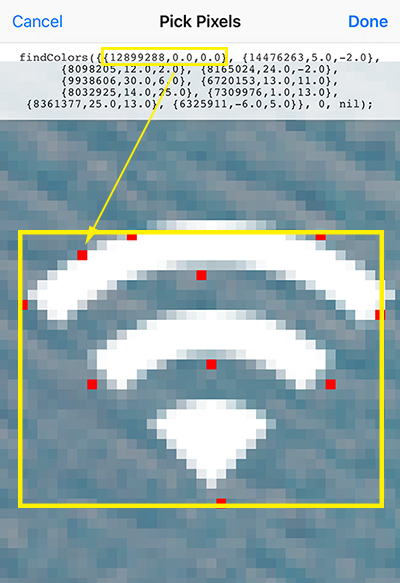
Search for a pattern of colors at fixed relative positions and return the coordinate of the first (anchor) color in each match. This can be efficient for stable UI colors: match a few anchor colors and their offsets instead of a whole picture. Changes in theme, scaling or color can break a pattern; use image matching or OCR when appropriate. Use the
countparameter to limit results —0finds all matches,1the first,2the first two, and so on. Theregionparameter ({x, y, width, height}) restricts the search area; passnilto search the whole screen. This function can use the "HELPER" tool in the "Extension Function" of the script-editing interface to select the anchors' colors from the screenshot and get their corresponding location to the function's parameter automatically. The coordinate of the pixel point pointed by the arrow is the coordinate of the return value.
Parameters
| Parameter | Type | Specification | Optional | Default |
|---|---|---|---|---|
| colors | table | A non-empty pattern of {color, dx, dy} entries. Use {color, 0, 0} for the first anchor, then offsets from that anchor for other colors. | NO | |
| count | integer | Maximum matches; 0 means all. Use 1 when you only need one target. | YES | 0 |
| region | table | {x, y, width, height} in screen pixels; nil searches the whole screen. | YES | nil |
| debug | boolean | If pass debug=true, it will produce a image ends with "-Debug.PNG" marked the matching areas. | YES | false |
| rightToLeft | boolean | Search direction, default is left to right. | YES | false |
| bottomToTop | boolean | Search direction, default is top to bottom. | YES | false |
Return
| Return | Type | Specification |
|---|---|---|
| locations | table | The coordinate of the first color matched in the found rectangular area, including { {x1, y1}, {x2, y2}, ...} |
Examples
-- Example:
local result = findColors({ {0x00ddff,0,0}, {0x00eeff,10,10}, {0x0000ff,0,20} }, 2, nil, true);
for i, v in pairs(result) do
    log(string.format("Found rect at: x:%f, y:%f", v[1], v[2]));
end

-- Example: Search from right to left, from bottom to top
local result = findColors({ {0x00ddff,0,0}, {0x00eeff,10,10}, {0x0000ff,0,20} }, 2, nil, true, true);
for i, v in pairs(result) do
    log(string.format("Found rect at: x:%f, y:%f", v[1], v[2]));
end

-- Example:
local colors = { {0x00ddff,0,0}, {0x00eeff,10,10}, {0x0000ff,0,20} };
local result = findColors(colors, 0, nil, true);
for i, v in pairs(result) do
    log(string.format("Found rect at: x:%f, y:%f", v[1], v[2]));
end

-- Example:
local colors = { {0x00ddff,0,0}, {0x00eeff,10,10}, {0x0000ff,0,20} };
local region = {100, 50, 200, 200};
local result = findColors(colors, 0, region);
for i, v in pairs(result) do
    log(string.format("Found rect at: x:%f, y:%f", v[1], v[2]));
end
# findImage(options)
Find one target image in the current screen or an optional larger source image. The options form can combine exact template matching, feature geometry verification, and rotation/scale shape search. It returns rich, explainable results and is the recommended form for all new scripts.
findImage is one overloaded Lua function, not two globals. Passing one table selects the options form documented here. The legacy positional form remains available for existing scripts in the collapsed compatibility section below.
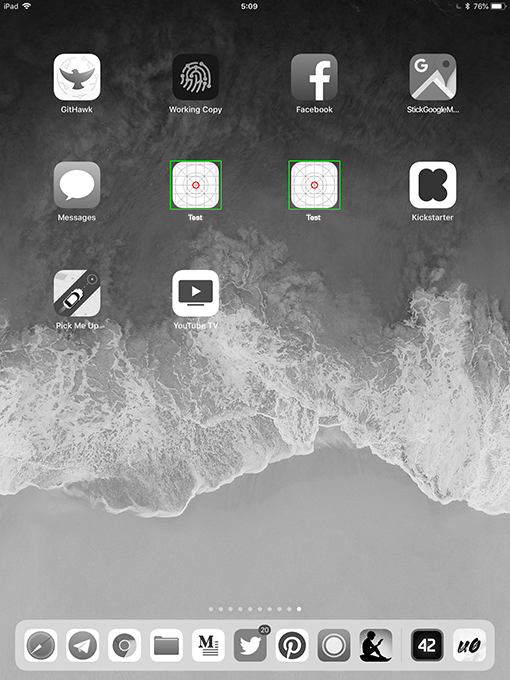
Example: matched images and their centers
Options
| Field | Type | Default | Specification |
|---|---|---|---|
| image | string | required | Target image path, relative to the current script or absolute. |
| source | string | current screen | Optional source image path for offline matching and tests. |
| count | integer | 1 | Integer from 0 to 100; 0 requests up to 100 results, not an unlimited search. |
| confidence | float | 0.82 | Normalized minimum confidence in [0, 1]. |
| region | table | whole source | {x, y, width, height} search region. |
| strategy | string | "auto" | "auto", "template", "feature", or "shape". |
| colorMode | string | "auto" | "auto", "color", "luminance", or "shape". |
| featureBackend | string | "auto" | "auto", "sift", or "orb". On rootless/Dopamine, auto selects ORB; explicitly selecting SIFT for auto or feature strategy raises an error. |
| minScale / maxScale / scaleStep | number | 0.5 / 2.0 / 1.25 | Scale bounds: 0.1–8.0, minimum ≤ maximum. Multiplicative step: 1.01–4.0. Scale 1 is the original target size. |
| minAngle / maxAngle / angleStep | number | -180 / 180 / 30 | Angle bounds: -180–180, minimum ≤ maximum. Step: 1–180 degrees. 0 means unrotated. |
| allowPerspective | boolean | true | Allow homography verification for feature matches. |
| maxVariants | integer | 128 | Integer from 1 to 512; caps generated rotation/scale variants. Broad ranges may be cut short by this budget. |
| debug | boolean | false | Save an annotated image under the scripts directory as Debug/findImage-HHmmss-Debug.PNG. |
Return
Returns a table of matches ordered by confidence; no match returns an empty table {}. Each match contains center, four corners, rectangle, confidence, scale, rotation, method, and feature-verification diagnostics when applicable. Transparent single-color targets use bidirectional alpha-edge verification (method = "template_alpha_edge") so a larger same-color shape that merely contains the target pixels is not treated as an exact match.
Coordinates are in pixels relative to the full screen, or to the full source image when supplied. A region does not reset the origin: do not add its offset again. Offline results are not live screen coordinates and should not be tapped without your own coordinate mapping.
| Result field | Shape / meaning |
|---|---|
center | {x = number, y = number}; use match.center.x and match.center.y to tap. |
corners | Four {x = number, y = number} points around the detected target. |
rectangle | {x = number, y = number, width = number, height = number} bounding box. |
confidence | Match score from 0 to 1, not a probability of correctness. |
scale, rotation | Estimated scale relative to the target and rotation in degrees. |
method | Matcher used, useful for diagnostics. |
inliers, inlierRatio, reprojectionError | Feature-verification diagnostics; not meaningful for every method. |
Choosing a strategy
auto: starts with same-size template matching, then uses feature and shape matching as needed. A confident result may end the search early.template: same-size, unrotated matching for stable UI screenshots. It does not generate rotated or scaled templates; the bounds must include scale1and angle0.feature: geometric matching for images with distinctive texture;allowPerspectivepermits perspective verification.shape: searches rotated/scaled shapes, useful for icons and silhouettes. Narrow the scale/angle ranges when possible.
Start with auto, a small region, and count = 1. Raise confidence if unrelated objects match; use a more distinctive crop if needed. Increasing the search range or maxVariants costs more work and does not guarantee a match. Keep transparent PNG backgrounds when the target silhouette matters.
Examples
-- Stable UI: find one button and tap its center.
local matches = findImage({
    image = "images/button.PNG",
    strategy = "template",
    confidence = 0.95,
})
if #matches > 0 then
    tap(matches[1].center.x, matches[1].center.y)
end
local matches = findImage({
    image = "images/spirit.PNG",
    region = {100, 100, 300, 300},
    count = 2,
    confidence = 0.82,
    strategy = "auto",
    featureBackend = "auto",
    minScale = 0.5,
    maxScale = 2.0,
    minAngle = -180,
    maxAngle = 180,
})

for _, match in ipairs(matches) do
    log(string.format(
        "Found image at x:%.1f, y:%.1f, confidence:%.3f, method:%s",
        match.center.x,
        match.center.y,
        match.confidence,
        match.method
    ))
    tap(match.center.x, match.center.y)
end
-- Offline matching with error handling; do not tap these image coordinates.
local ok, result = pcall(findImage, {
    image = "images/button.PNG",
    source = "captures/screen.PNG",
    count = 1,
})
if not ok then
    log("Image search failed: " .. tostring(result))
elseif #result == 0 then
    log("No match found.")
else
    log(string.format("Image center: %.1f, %.1f",
        result[1].center.x, result[1].center.y))
end
The options form is synchronous, runs locally, and accepts exactly one table. Missing/unreadable files, invalid options, or unavailable screen capture raise Lua errors; use pcall when you need to handle failures. An empty result is a successful search with no match. This API does not accept the old JavaScript targetImagePath, duration, or callback options. Use image and confidence, not the positional names targetImagePath and threshold.
Legacy compatibility: findImage(targetImagePath, count, threshold, region, debug, method)
The positional form is retained for existing scripts. A string first argument selects this form and returns center points as {{x, y}, ...}. New scripts should use findImage(options) above. Legacy helpers such as findImageTap and keepFindingImage still take positional arguments. On rootless/Dopamine, method 3 (SIFT) raises an error; use method 2 or 4.
Parameters
| Parameter | Type | Specification | Optional | Default |
|---|---|---|---|---|
| targetImagePath | string | Target image path. Absolute paths start with /; other paths are relative to the current script. | NO | |
| count | integer | Non-negative integer. Local results are capped at 100, including when 0 requests all matches; nil uses the default. | YES | 1 |
| threshold | float | Matching threshold in (0, 1]. Values ≤ 0.0001 or > 1 reset to 0.9; non-finite values raise an error. | YES | 0.9 |
| region | table | {x, y, width, height} search region; nil searches the whole screen. | YES | Whole screen |
| debug | boolean | Produce an image ending in -Debug.PNG with matching areas marked. | YES | false |
| method | integer | Compatibility preset: 1 color template, 2 automatic, 3 SIFT, 4 ORB, 21 luminance template. Cloud methods 11 and 12 run only when explicitly requested. | YES | 1 (always local) |
Return
| Return | Type | Specification |
|---|---|---|
| center locations | table | Center coordinates in the legacy {{x, y}, ...} format. |
# screenshot(filePath, region)
Take a screenshot for the whole screen or specified area. It will save the screenshot image as an PNG into "AutoTouch" album of iOS Photo Library if the filePath parameter is nil, and will save the PNG to the specified path if filePath is not nil. If region parameter is nil, it will take shot of the whole screen. By Clicking "+" button at top-right of AutoTouch view, then "Copy Image Here", you are able to copy an image from iOS Photo Library to AutoTouch scripts directory.
Parameters
| Parameter | Type | Specification | Optional | Default |
|---|---|---|---|---|
| filePath | string | Where to save the image. | YES | "AutoTouch" album of iOS Photo Library |
| region | table | You make a screenshot of the specified area. This area is the table type including four values {x, y, width, height}. The four values respectively represent the coordinate x, coordinate y, width, and height of the rectangular area. {100,100,200,200} is an example. If you do not want to specify the area, just input nil. | YES | nil |
Return
None
Examples
-- Take shot of the whole screen and save into  "AutoTouch" album of iOS Photo Library.
screenshot();

-- Take a screenshot of the whole screen and save to the specified path, if no PNG as path extension, .PNG will automatically added.
screenshot ("images/screenshot1");

-- Take a screenshot of the specified area and save.
screenshot ("images/screenshot2.PNG", {100, 100, 200, 200});

-- Take a screenshot of the specified area and save into  "AutoTouch" album of iOS Photo Library.
screenshot (nil, {100, 100, 200, 200});
# appRun(appIdentifier)
Run specified application.
Parameters
| Parameter | Type | Specification |
|---|---|---|
| appIdentifier | string | Application identifier, including "com.apple.mobilesafari". Read it with frontMostAppId() while the target app is open. |
Return
None
Examples
-- Run Safari
appRun("com.apple.mobilesafari");
# appKill(appIdentifier)
Kill specified application.
Parameters
| Parameter | Type | Specification |
|---|---|---|
| appIdentifier | string | Application identifier, including "com.apple.mobilesafari". Read it with frontMostAppId() while the target app is open. |
Return
None
Examples
-- Kill the running Safari
appKill("com.apple.mobilesafari");
# appState(appIdentifier)
Get the running state of the specified application
Parameters
| Parameter | Type | Specification |
|---|---|---|
| appIdentifier | string | Application identifier, including "com.apple.mobilesafari". Read it with frontMostAppId() while the target app is open. |
Return
| Return | Type | Specification |
|---|---|---|
| state | string | State of Character string type: "NOT RUNNING", "ACTIVATED", "DEACTIVATED"。 |
Examples
-- Get the state of Safari.
local state = appState("com.apple.mobilesafari");
alert(string.format("State of Safari: %s", state));
-- Pop up the state of Safari: "ACTIVATED"
# rootDir()
Get the persistent scripts directory. Use this returned path instead of hard-coding a path for a particular jailbreak. Screenshots with no file path go to Photos.
Parameters
None
Return
| Return | Type | Specification |
|---|---|---|
| dir | string | Default directory address of the saved script. |
Examples
local dirPath = rootDir();
alert(dirPath);
-- Popup "/var/mobile/Library/AutoTouch/Scripts/"
# currentDir()
Get directory of current executing script in runtime.
Parameters
None
Return
| Return | Type | Specification |
|---|---|---|
| dir | string | Directory of script in runtime. |
Examples
local dir = currentDir();
alert(dir);
-- "/var/mobile/Library/AutoTouch/Scripts"
-- Or maybe in tmp place for encrypted scripts: "/tmp/xxxxxxxxxxxx/"
# botPath()
Get the original script or package path. Unlike
currentDir(), this identifies the original.atefile when an encrypted package runs from a temporary directory.
Parameters
None
Return
| Return | Type | Specification |
|---|---|---|
| path | string | Original path of the bot. |
Examples
local path = botPath();
alert(path);
-- "/var/mobile/Library/AutoTouch/Scripts/test.lua"
-- "/var/mobile/Library/AutoTouch/Scripts/test1.ate"
# usleep(microseconds)
Sleep several microseconds (1/1000000 second)
Parameters
| Parameter | Type | Specification |
|---|---|---|
| microseconds | Integer | The number of paused microseconds. |
Return
None
Examples
-- Sleep 1 second.
usleep(1000000);
# log(content)
Record log, can be seen in the log interface.
Parameters
| Parameter | Type | Specification |
|---|---|---|
| content | string | The log content to be recorded. |
Return
None
Examples
log("play here...");
# alert(message)
Pop up the dialog box to show specified content.
Parameters
| Parameter | Type | Specification |
|---|---|---|
| message | string | Content to be showed. |
Return
None
Examples
alert("Hello World!");
# toast(message, delay)
Show messages with Toast style and delay for some seconds.
Parameters
| Parameter | Type | Specification |
|---|---|---|
| message | string | Content to be showed. |
| delay | integer | How long time to keep showing, default is 2 seconds. |
Return
None
Examples
toast("Hello I'm a toast!", 5); -- Show message for 5 seconds.
toast("Hello again!"); -- Show message for 2 seconds.
# vibrate()
Vibrate once。
Parameters
None
Return
None
Examples
-- Vibrate once.
vibrate();
# playAudio(audioFile, times)
Play audio document at specified location.
Parameters
| Parameter | Type | Specification |
|---|---|---|
| audioFile | string | Absolute path of audio document. |
| times | integer | Additional loops: 0 (default) plays once, 1 plays twice, -1 repeats indefinitely. |
Return
None
Examples
-- Play audio infinitely.
playAudio(currentDir() .. "/audio.mp3", -1);
# stopAudio()
Stop playing audio.
Parameters
None
Return
None
Examples
-- Stop playing audio.
stopAudio();
# getOrientation()
Get physical device orientation. Values
0–4match the orientation constants;5means face up and6means face down. UsefrontMostAppOrientation()for the application interface.
Parameters
None
Return
| Return | Type | Specification |
|---|---|---|
| orientation | Integer | Screen orientation may be these values |
Examples
local o = getOrientation();
alert(string.format("Device orientation: %d", o))
# getScreenResolution()
Get screen width and height in native pixels for the current interface orientation. Returns
nil, nilif display state is unavailable.
Parameters
None
Return
| Return | Type | Specification |
|---|---|---|
| width | Integer | Width of screen resolution. |
| height | Integer | Height of screen resolution. |
Examples
local w, h = getScreenResolution();
if w and h then
    alert(string.format("Screen: %d × %d pixels", w, h));
end
# getSN()
Get Serial Number of the device.
Parameters
None
Return
| Return | Type | Specification |
|---|---|---|
| SN | string | Serial Number of the device. |
Examples
local sn = getSN();
alert(string.format("SN is : %s", sn));
-- Popup shows the SN of the device: C15NFK32TWD2
# getVersion()
Get version of AutoTouch.
Parameters
None
Return
| Return | Type | Specification |
|---|---|---|
| version | string | Version of AutoTouch. |
Examples
local version = getVersion();
alert(string.format("Current version of AutoTouch is : %s", version));
-- Pop up shows current version of AutoTouch: 3.5.3-4
# frontMostAppId()
Get identifier of current front most App.
Parameters
None
Return
| Return | Type | Specification |
|---|---|---|
| App Identifier | string | Bundle identifier of the foreground app; may be nil or empty when no app is reported. |
Examples
local appId = frontMostAppId();
log("Foreground app: " .. tostring(appId));
# frontMostAppOrientation()
Get orientation of current front most App. See the Types of orientations
Parameters
None
Return
| Return | Type | Specification |
|---|---|---|
| Orientation | integer | Orientation of current front most App. |
Examples
local orientation = frontMostAppOrientation();
alert(string.format("Orientation of current front most App is : %d", orientation));
# intToRgb(intColor)
Transit integer color to independent values of R,G,B.
Parameters
| Parameter | Type | Specification |
|---|---|---|
| intColor | Integer | Integer color value |
Return
| Return | Type | Specification |
|---|---|---|
| R | Integer | Red color value. |
| G | Integer | Green color value. |
| B | Integer | Blue color value. |
Examples
local r, g, b = intToRgb(0x2b2b2b);
alert(string.format("R:%d, G:%d, B:%d", r, g, b));
# rgbToInt(r, g, b)
Transit values of R,G,B to integer color value.
Parameters
| Parameter | Type | Specification |
|---|---|---|
| R | Integer | Red color value. |
| G | Integer | Green color value. |
| B | Integer | Blue color value. |
Return
| Return | Type | Specification |
|---|---|---|
| intColor | Integer | Integer color value |
Examples
local intColor = rgbToInt(200, 255, 100);
alert(string.format("Int type color: %d", intColor));
# copyText(text)
Copy specified text to clipboard.
Parameters
| Parameter | Type | Specification |
|---|---|---|
| text | string | Text to be copied. |
Return
None
Examples
copyText("This is a copied text!");
# clipText()
Get the text in the clipboard.
Parameters
None
Return
| Return | Type | Specification |
|---|---|---|
| text | string | Text copied in the clipboard. |
Examples
local text = clipText();
alert(text);
-- Popup shows the text to be copied: "This is a copied text!";
# inputText(text)
Input text to the input box selected now. You can delete a character backspace by inputText("\b"). ATTENTION: Enable the inputText function at AutoTouch Settings > Features before using it.
Parameters
| Parameter | Type | Specification |
|---|---|---|
| text | string | Text to be input. |
Return
None
Examples
inputText("Let's input some text automatically without tapping the keyboard!");
--  Delete 3 character by inputing 3 backspaces.
inputText("\b\b\b");
# dialog(controls, orientations)
Pop up self-defined dialog box to accept the user input. Please refer to the example for specific usage.
Parameters
| Parameter | Type | Specification | Optional | Default |
|---|---|---|---|---|
| controls | table | Array of self-defined controls. You can now use these dialog box controls. | NO | |
| orientations | table | Orientations that dialog can be, see Types of orientations. | YES | auto |
Return
| Return | Type | Specification |
|---|---|---|
| Flag of tapped button | integer |
Examples
local label = {type=CONTROLLER_TYPE.LABEL, text="Would you mind to provide some personal informations?"}
local nameInput = {type=CONTROLLER_TYPE.INPUT, title="Name:", key="Name", value="Bob"}
local positionPicker = {type=CONTROLLER_TYPE.PICKER, title="Position:", key="Position", value="CEO", options={"CEO", "CTO", "CFO", "CXO"} }
local developerSwitch = {type=CONTROLLER_TYPE.SWITCH, title="A Developer:", key="ADeveloper", value=1}

-- It's an option for users to determine whether the inputs should be remembered, if you use this control in the dialog.
local remember = {type=CONTROLLER_TYPE.REMEMBER, on=false}

--[[ Define buttons:
type = CONTROLLER_TYPE.BUTTON
title = Button text
color = Button background color, it's optional, the default value is 0x428BCA
width = Button width upon percentage of the dialog width, it's optional, the default value is 0.5, max value is 1.0.
flag = Integer type of button flag for identifying which button is tapped.
collectInputs = Boolean type specifying whether the dialog should collect the inputs while this button is tapped. ]]--
local btn1 = {type=CONTROLLER_TYPE.BUTTON, title="Button 1", color=0x71C69E, width=0.8, flag=1, collectInputs=false}
local btn2 = {type=CONTROLLER_TYPE.BUTTON, title="Button 2", color=0xFF5733, flag=2, collectInputs=true}
local btn3 = {type=CONTROLLER_TYPE.BUTTON, title="Button 3", color=0xFFB7D0, width=1.0, flag=3, collectInputs=false}
local btn4 = {type=CONTROLLER_TYPE.BUTTON, title="Button 4", width=1.0, flag=4, collectInputs=true}

local controls = {label, nameInput, positionPicker, developerSwitch, btn1, btn2, remember, btn3, btn4}

-- Pop up the dialog. After popping, the script will suspend waiting for user input until any button is tapped, then returns the flag of tapped button.

-- What orientations the dialog could be, it's optional
local orientations = { ORIENTATION_TYPE.LANDSCAPE_LEFT, ORIENTATION_TYPE.LANDSCAPE_RIGHT };

local result = dialog(controls, orientations);

if (result == 2 or result == 4) then
    alert(string.format("Name:%s, position:%s, developer:%s", nameInput.value, positionPicker.value, tostring(developerSwitch.value)))
else
    alert(string.format("Dialog returned: %s", result))
end
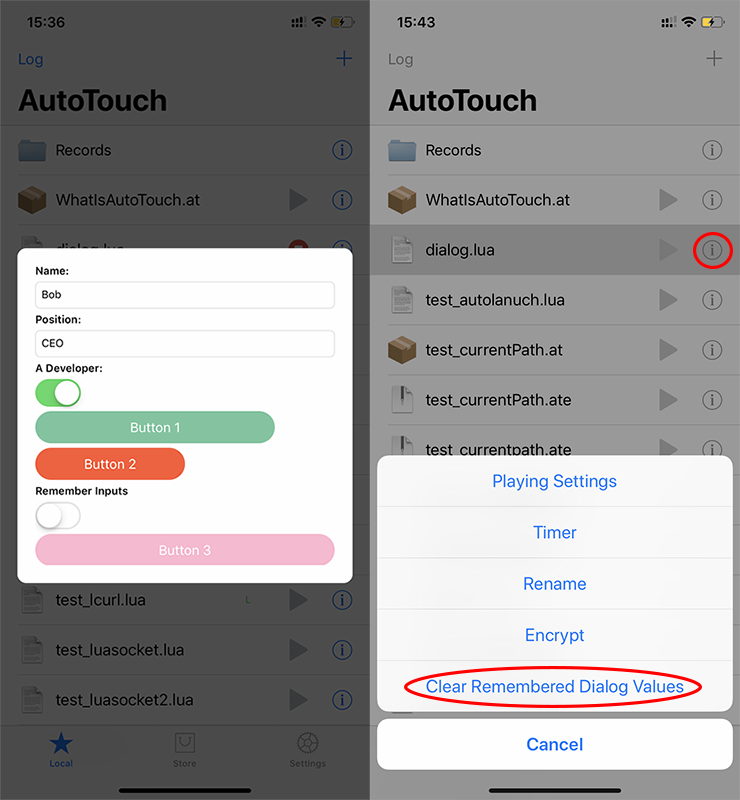
# clearDialogValues(script)
Clear the remembered values of the dialog created by the function dialog.
Parameters
| Parameter | Type | Specification |
|---|---|---|
| script | string | script path. eg. there is a dialog.lua script in the scripts list, use it like this: clearDialogValues("dialog.lua"); |
Return
None
Examples
-- There is a dialog.lua script in the scripts list
clearDialogValues("dialog.lua");
# openURL(urlString)
Open a web URL or a URL scheme supported by an installed app. Available schemes depend on that app and iOS version.
Parameters
| Parameter | Type | Specification |
|---|---|---|
| urlString | string | URL to open. |
Return
None. Opening a URL does not confirm that the destination has finished loading.
openURL("https://autotouch.net")
# isLicensed()
Check if the current device is running licensed AutoTouch
Parameters
None
Return
| Return | Type | Specification |
|---|---|---|
| licensed | boolean | If current device is licensed. |
Examples
if isLicensed() then
    alert("Your device is licensed by AutoTouch!");
end
# setAutoLaunch(scriptPath, on)
Switch on/off a script as auto launch.
Parameters
| Parameter | Type | Specification |
|---|---|---|
| filePath | string | Path starts with "/" is a absolute path, otherwise it's a relative path. |
| on | boolean | Switch auto launch on or off, true means on, false means off. |
Return
None
Examples
setAutoLaunch("Records/test.lua", true);
# listAutoLaunch()
List all auto launch scripts
Parameters
None
Return
| Return | Type | Specification |
|---|---|---|
| scripts | table | Relative path List of auto launch scripts. |
Examples
local scripts = listAutoLaunch()
for i, v in pairs(scripts) do
    alert(v);
end
# stop()
Stop the current script execution.
Parameters
None
Return
None
Examples
-- Exit execution
stop();
# ocr(options)
Recognize text in the screen or an image file. The call is synchronous. ocr() and ocr({}) use local iOS Vision; this requires iOS 13 or later. A device can run AutoTouch on an older supported iOS version without supporting Vision text recognition.
Options
| Field | Type | Default | Meaning |
|---|---|---|---|
| method | integer | OCR_METHOD.IOS_VISION | IOS_VISION (1) is local; AI_CLOUD (2) explicitly sends the image/region to the remote service. TESSERACT_LOCAL (3) is unavailable and raises an error. |
| image | string | current screen | Image file path, relative to the script or absolute. |
| region | table | whole image/screen | {x, y, width, height} in source pixels. |
| timeout | integer | 10 | Recognition timeout in seconds, from 1 to 300. |
| debug | boolean | false | Enable recognition diagnostics. |
| languages | table | {"en-US"} | Vision language strings, in priority order. Supported languages depend on iOS. |
| customWords | table | none | Vision: additional words to aid recognition. |
| minimumTextHeight | number | system default | Vision: minimum text height as a fraction of the searched image height, in (0, 1]. |
| level | integer | 0 | Vision: 0 for accurate recognition, 1 for fast recognition. |
| correct | boolean | false | Vision: enable language correction. |
| lang | string | service default | Cloud language code(s), such as "eng". This differs from Vision's languages array. |
| whitelist / blacklist | string | none | Cloud character filters. |
There is no automatic cloud fallback. Cloud OCR requires network access and a valid license. Select it explicitly when needed; local OCR failure does not upload your screen.
Return
A table of recognized items. Each item has text and rectangle, with topLeft, topRight, bottomLeft and bottomRight points ({x = number, y = number}). Coordinates refer to the full source screen/image, including a region's offset.
No recognized text normally produces an empty table. Handle nil defensively if the backend supplies no result. Invalid options, unavailable backends and recognition failures raise Lua errors; this function does not return a separate result, error pair.
local ok, results = pcall(ocr, {
    method = OCR_METHOD.IOS_VISION,
    languages = {"en-US"},
    timeout = 10,
})
if not ok then
    log("OCR failed: " .. tostring(results))
    return
end
for _, item in ipairs(results or {}) do
    log(item.text)
end
-- Explicit cloud recognition of an image bundled with the script.
local results = ocr({
    method = OCR_METHOD.AI_CLOUD,
    image = "images/label.PNG",
    lang = "eng",
    timeout = 10,
})
for _, item in ipairs(results or {}) do log(item.text) end
# appInfo(appIdentifier)
Get the specified App's displayName,executablePath,bundleContainerPath,dataContainerPath.
Parameters
| Parameter | Type | Specification |
|---|---|---|
| appIdentifier | String | App identifier,such as "com.apple.mobilesafari", Read the foreground identifier with frontMostAppId(). |
Return
| Return | Type | Specification |
|---|---|---|
| info | table | App info table; nil if unavailable. |
Examples
local result = appInfo("com.microsoft.Office.Outlook")
alert(table.tostring(result))
# setTimer(scriptPath, fireTime, repeat, interval)
Set timer for a script.
Parameters
| Parameter | Type | Specification | Optional | Default |
|---|---|---|---|---|
| filePath | string | A path starting with "/" is an absolute path; otherwise it is relative to the running script directory. | NO | |
| fireTime | string or integer | When the timer should trigger. An integer means "after N seconds from now"; a string is an absolute datetime in the format "2019-09-17 08:12:52". | NO | |
| repeat | boolean | Whether the timer should repeat. | YES | false |
| interval | integer | Repeat interval in seconds. Required (must be > 0) when repeat is true. | YES | 0 |
Return
| Return | Type | Specification |
|---|---|---|
| done | boolean | If it is successful. |
Examples
-- Trigger once, 1000 seconds from now.
local done = setTimer("Records/test.lua", 1000, false);

-- Trigger at an absolute time, then repeat every 10000 seconds.
local done = setTimer("Records/test.lua", os.date("%Y-%m-%d %H:%M:%S", os.time() + 60), true, 10000);
# removeTimer(scriptPath)
Remove timer of a script.
Parameters
| Parameter | Type | Specification | Optional | Default |
|---|---|---|---|---|
| filePath | string | Absolute script path, or a path relative to the running script directory, such as "Records/test.lua". | NO |
Return
| Return | Type | Specification |
|---|---|---|
| done | boolean | If it is successful. |
Examples
local done = removeTimer("Records/test.lua");
# keepAutoTouchAwake(keepAwake)
Keep AutoTouch awake against iOS idle sleep.
Parameters
| Parameter | Type | Specification | Optional | Default |
|---|---|---|---|---|
| keepAwake | boolean | Keep AutoTouch awake or not | NO |
Return
None
Examples
keepAutoTouchAwake(true);
# saveToSystemAlbum(filePath, albumName) 8.1.1+
Save an image or video from specific path to system
Parameters
| Parameter | Type | Specification | Optional | Default |
|---|---|---|---|---|
| filePath | string | File relative path or absolute path | NO | |
| albumName | string | Album name | YES |
Return
None
Examples
saveToSystemAlbum("Examples/images/cat.png"); -- Save an image or video from specific path to system album without specifying the album name
saveToSystemAlbum("Examples/images/cat.png", "Test1"); -- Save an image or video from specific path to a specified system album
saveToSystemAlbum("test.mp4", "Test2"); -- Save an image or video from specific path to a specified system album
# clearSystemAlbum(albumName) 8.1.1+
Clear all images and videos in system album
Parameters
| Parameter | Type | Specification | Optional | Default |
|---|---|---|---|---|
| albumName | string | Album name | YES |
Return
None
Examples
saveToSystemAlbum("test.mp4", "Test2"); -- Save an image or video from specific path to a specified system album

clearSystemAlbum("Test2"); -- Clear all images and videos in a specific system album
clearSystemAlbum(); -- Clear all images and videos in all system albums
# execute(command)
Execute a shell command and return its output. It runs with the script host’s process permissions. It blocks until the command finishes.
Parameters
| Parameter | Type | Specification | Optional | Default |
|---|---|---|---|---|
| command | string | The shell command to run. | NO |
Return
| Return | Type | Specification |
|---|---|---|
| output | string | The combined standard output and standard error of the command. |
Examples
local result = execute("ls -l /");
alert(result);

-- Inspect the current process identity on the device.
log(execute("id"));
# getLocalIP() 8.2.2+
Get local IP
Parameters
None
Return
| Return | Type | Specification |
|---|---|---|
| Local IP | string | Local IP. |
Examples
local ip = getLocalIP();
alert(ip)
# getScreenSize()
Get screen width and height in points for the current interface orientation. Returns
nil, nilif display state is unavailable. UsegetScreenResolution()directly for touch and image coordinates; point dimensions are rounded down.
Parameters
None
Return
| Return | Type | Specification |
|---|---|---|
| width | Integer | Screen width in points. |
| height | Integer | Screen height in points. |
Examples
local w, h = getScreenSize();
if w and h then log(string.format("Screen is %d x %d points", w, h)); end
# getScreenScale()
Get the display scale factor, or
nilif display state is unavailable. UsegetScreenResolution()for exact native pixel dimensions.
Parameters
None
Return
| Return | Type | Specification |
|---|---|---|
| scale | Number | The screen scale. |
Examples
local scale = getScreenScale();
if scale then log("Display scale: " .. scale); end
# getScreenBitDepth()
Get the color bit depth of the screen (typically 32).
Parameters
None
Return
| Return | Type | Specification |
|---|---|---|
| bitDepth | Integer | Bits per pixel. |
Examples
log("Bit depth: " .. getScreenBitDepth());
# tap(x, y)
Tap once at the given coordinate. A convenience helper equivalent to a quick
touchDown+touchUp.
Parameters
| Parameter | Type | Specification |
|---|---|---|
| x | Number | X coordinate. |
| y | Number | Y coordinate. |
Return
None
Examples
tap(200, 400);
Internal Implementation
function tap(x, y)
    touchDown(0, x, y);
    usleep(16000);
    touchUp(0, x, y);
end
# keyPress(keyType)
Press and release a physical key once. A convenience helper equivalent to
keyDown+keyUp.
Parameters
| Parameter | Type | Specification |
|---|---|---|
| keyType | Integer | Physical key. See physical keys. |
Return
None
Examples
keyPress(KEY_TYPE.HOME_BUTTON);
# lockScreen()
Lock the screen (simulates a press of the power button). See
unlockScreento unlock.
Parameters
None
Return
None
Examples
lockScreen();
usleep(1000000);
unlockScreen();
# findColorTap(color, count, region)
Run
findColorand tap every location it finds. Returns the same result table asfindColor.
Parameters
Same as findColor (color, count, region).
Return
| Return | Type | Specification |
|---|---|---|
| locations | table | Coordinates that were found (and tapped). |
Examples
-- Find and tap the first red pixel.
findColorTap(0xff0000, 1, nil);
# findColorsTap(colors, count, region)
Run
findColorsand tap every location it finds.
Parameters
Same as findColors (colors, count, region).
Return
| Return | Type | Specification |
|---|---|---|
| locations | table | Coordinates that were found (and tapped). |
Examples
local colors = { {0x00ddff, 0, 0}, {0x0000ff, 0, 20} };
findColorsTap(colors, 0, nil);
# findImageTap(imagePath, count, threshold, region, debug, method)
Run
findImageand tap the center of every match it finds.
Parameters
Same as findImage.
Return
| Return | Type | Specification |
|---|---|---|
| center locations | table | Match centers that were found (and tapped). |
Examples
findImageTap("images/button.PNG", 1, 0.99);
# keep(func, interval, exit)
Repeatedly call
funcon an interval — the building block for polling loops. Ifexitis true, the loop stops the first timefuncreturns a truthy value; otherwise it loops forever.
Parameters
| Parameter | Type | Specification | Optional | Default |
|---|---|---|---|---|
| func | function | Called on each iteration. Its return value is only used when exit is true. | NO | |
| interval | number | Delay between iterations, in milliseconds. | YES | 1000 |
| exit | boolean | If true, stop once func returns a truthy value. | YES | false |
Return
None
Examples
-- Poll a value every 500ms until it appears, then stop.
keep(function()
    local found = findColor(0x00ff00, 1, nil);
    return found ~= nil and #found > 0;
end, 500, true);
# keepFindingColor(color, count, region, func, interval, exit)
Repeatedly run
findColoron an interval, passing the result tofunceach time. Built onkeep; whenexitis true it stops as soon as the color is found.keepFindingColorsandkeepFindingImagework the same way forfindColorsandfindImage.
Parameters
| Parameter | Type | Specification | Optional | Default |
|---|---|---|---|---|
| color | Integer | The color to search for. | NO | |
| count | Integer | How many matches to find (0 = all). | NO | 0 |
| region | table | Restrict search to {x, y, width, height}, or nil. | NO | nil |
| func | function | Called with the found locations on each iteration. | YES | nil |
| interval | number | Delay between iterations, in milliseconds. | YES | 1000 |
| exit | boolean | Stop once the color is found. | YES | false |
Return
None
Examples
-- Every second, tap whatever green pixels are on screen; never stop.
keepFindingColor(0x00ff00, 0, nil, function(locations)
    if locations then
        for _, v in pairs(locations) do tap(v[1], v[2]); end
    end
end, 1000, false);
# keepFindingColors(colors, count, region, func, interval, exit)
Like
keepFindingColorbut forfindColors(an anchor-color pattern).
Parameters
Same shape as keepFindingColor, with colors (the anchor pattern table) in place of color.
Return
None
Examples
local pattern = { {0x00ddff, 0, 0}, {0x0000ff, 0, 20} };
keepFindingColors(pattern, 1, nil, function(locations)
    if locations and #locations > 0 then log("Pattern appeared"); end
end, 800, true);
# keepFindingImage(imagePath, count, threshold, region, debug, method, func, interval, exit)
Like
keepFindingColorbut forfindImage.
Parameters
The first six parameters match findImage; the last three are func, interval (ms) and exit as in keepFindingColor.
Return
None
Examples
keepFindingImage("images/enemy.PNG", 0, 0.9, nil, false, 1, function(locations)
    if locations then
        for _, v in pairs(locations) do tap(v[1], v[2]); end
    end
end, 500, false);
# keepFindingColorTap(color, count, region, interval, exit) · keepFindingColorsTap · keepFindingImageTap
Convenience loops that find and tap on each iteration — the
*Tapcounterparts of thekeepFinding*family.keepFindingColorTap(color, count, region, interval, exit),keepFindingColorsTap(colors, count, region, interval, exit)andkeepFindingImageTap(imagePath, count, threshold, region, debug, method, interval, exit).
Return
None
Examples
-- Auto-collect: every 300ms, tap any coin on screen. Runs forever.
keepFindingImageTap("images/coin.PNG", 0, 0.95, nil, false, 1, 300, false);
# appIsActive(appIdentifier)
Return whether the given app is currently in the foreground. Pass
"com.apple.SpringBoard"to test whether the home screen is showing.
Parameters
| Parameter | Type | Specification |
|---|---|---|
| appIdentifier | String | The bundle identifier, e.g. "com.apple.mobilesafari". |
Return
| Return | Type | Specification |
|---|---|---|
| active | boolean | Whether the app is in the foreground. |
Examples
if not appIsActive("com.apple.mobilesafari") then
    appRun("com.apple.mobilesafari");
end
# appActivate(appIdentifier, timeoutSeconds)
Bring an app to the foreground, retrying until it is active or the retry budget is exhausted.
| Parameter | Type | Default | Meaning |
|---|---|---|---|
| appIdentifier | string | required | App bundle identifier. |
| timeoutSeconds | number | 30 | Finite number in (0, 300]; sets the retry budget at approximately two attempts per second. Individual app-launch calls can add time. |
Returns true when the app is active, or false when attempts are exhausted. Check the result before interacting with the app; activation does not mean every UI element has finished loading.
if not appActivate("com.apple.Preferences", 10) then
    alert("Could not activate Settings.")
    return
end
-- Now wait for the specific UI element your script needs.
# pauseAudio() · resumeAudio()
Pause and resume audio started with
playAudio. UsestopAudioto stop playback entirely.
Parameters
None
Return
None
Examples
playAudio(currentDir() .. "/audio/alarm.mp3", -1);
usleep(2000000);
pauseAudio();
usleep(1000000);
resumeAudio();
# respring() 8.2.6+
Restart
SpringBoard(a "respring"). Useful to recover the UI or apply certain changes. The running script is terminated by the respring.
Parameters
None
Return
None
Examples
respring();
# memoryUsageOfApp(appIdentifier)
Get the app process’s physical memory footprint in bytes. Returns
0if the process cannot be found or read.
Parameters
| Parameter | Type | Specification |
|---|---|---|
| appIdentifier | String | The bundle identifier. |
Return
| Return | Type | Specification |
|---|---|---|
| memory | Number | Memory footprint, in bytes. |
Examples
local bytes = memoryUsageOfApp("com.apple.mobilesafari");
log(string.format("Safari footprint: %.2f MiB", bytes / 1048576));
# memoryUsageOfTotal()
Get the resident memory of the process hosting AutoTouch, in bytes. Despite its name, this is not the device’s total RAM. Returns
0if the measurement fails.
Parameters
None
Return
| Return | Type | Specification |
|---|---|---|
| memory | Number | Host process resident memory, in bytes. |
Examples
log(string.format("Host resident memory: %.2f MiB", memoryUsageOfTotal() / 1048576));
# clearLog()
Clear the AutoTouch runtime log (the log shown in the app and returned by the log HTTP endpoint).
Parameters
None
Return
None
Examples
clearLog();
log("Fresh start");
# isKeepingAutoTouchAwake()
Return whether "keep awake" is currently enabled (see
keepAutoTouchAwake).
Parameters
None
Return
| Return | Type | Specification |
|---|---|---|
| awake | boolean | Whether keep-awake is enabled. |
Examples
if not isKeepingAutoTouchAwake() then keepAutoTouchAwake(true); end
# captureDebugInfo()
Capture a snapshot of diagnostic information (device, screen and runtime details) as a table. Handy when reporting an issue.
Parameters
None
Return
| Return | Type | Specification |
|---|---|---|
| info | table | Diagnostic key/value pairs. |
Examples
alert(table.tostring(captureDebugInfo()));
# dumpColorsOfScreen(filePath, region, rgb, coordinates)
Dump the colors of the screen (or a region) to a text file — useful for building
findColorspatterns by hand.
Parameters
| Parameter | Type | Specification | Optional | Default |
|---|---|---|---|---|
| filePath | String | Output text file path. | NO | |
| region | table | {x, y, width, height} region, or nil for the whole screen. | YES | nil |
| rgb | boolean | Write colors as r,g,b instead of a single integer. | YES | false |
| coordinates | boolean | Include the x,y of each pixel. | YES | false |
Return
| Return | Type | Specification |
|---|---|---|
| done | boolean | Whether it succeeded. |
Examples
dumpColorsOfScreen("dump.txt", {100, 100, 50, 50}, true, true);
# dumpColorsOfImage(imagePath, filePath, region, rgb, coordinates)
Like
dumpColorsOfScreen, but reads from an image file instead of the live screen.
Parameters
| Parameter | Type | Specification | Optional | Default |
|---|---|---|---|---|
| imagePath | String | Source image path. | NO | |
| filePath | String | Output text file path. | NO | |
| region | table | {x, y, width, height} region, or nil. | YES | nil |
| rgb | boolean | Write colors as r,g,b. | YES | false |
| coordinates | boolean | Include the x,y of each pixel. | YES | false |
Return
| Return | Type | Specification |
|---|---|---|
| done | boolean | Whether it succeeded. |
Examples
dumpColorsOfImage("images/panel.PNG", "panel-colors.txt", nil, true, true);
# centerOffsetOfPoints(points) · centerOffsetOfPixels(pixels)
Compute the center of the bounding box of a non-empty set of points, not their arithmetic mean.
centerOffsetOfPointstakes{ {x, y}, ... };centerOffsetOfPixelstakes afindColors-style pattern{ {color, dx, dy}, ... }and uses the offsets. Useful to tap the middle of a matched shape.
Parameters
| Parameter | Type | Specification |
|---|---|---|
| points | table | A list of {x, y} points (or {color, dx, dy} pixels). |
Return
| Return | Type | Specification |
|---|---|---|
| center | table | {x, y} center of the points. |
Examples
local center = centerOffsetOfPoints({ {100, 100}, {200, 100}, {150, 200} });
tap(center[1], center[2]);
# string.starts_with(str, start) · string.ends_with(str, ending)
String helpers: test whether a string starts or ends with a given substring.
Parameters
| Parameter | Type | Specification |
|---|---|---|
| str | String | The string to test. |
| start/ending | String | The prefix or suffix. |
Return
| Return | Type | Specification |
|---|---|---|
| result | boolean | Whether it matches. |
Examples
log(tostring(("script.lua"):ends_with(".lua")));   -- true
log(tostring(("/Records/a"):starts_with("/Records"))); -- true
# table.toString(t, pretty) · table.tostring(tbl)
Serialize a Lua table to a string for logging or debugging.
table.tostring(tbl)omits indentation;table.toString(t, true)pretty-prints with indentation.
Parameters
| Parameter | Type | Specification |
|---|---|---|
| t / tbl | table | The table to serialize. |
| pretty | boolean | (table.toString only) Indent the output. |
Return
| Return | Type | Specification |
|---|---|---|
| text | String | Diagnostic text, not valid JSON or reloadable Lua. Cycles and unsupported values raise an error. |
Examples
local info = appInfo("com.apple.mobilesafari");
log(table.toString(info, true));
# exit() · rootPathOfDocuments()
Aliases kept for convenience:
exit()is the same asstop();rootPathOfDocuments()is the same asrootDir().
Examples
local dir = rootPathOfDocuments();  -- == rootDir()
-- exit() stops the running script, just like stop().
# Constants
# Types of physical keys
| Value | Specification |
|---|---|
| KEY_TYPE.HOME_BUTTON | Home Button |
| KEY_TYPE.VOLUME_DOWN_BUTTON | Volume – Button |
| KEY_TYPE.VOLUME_UP_BUTTON | Volume + Button |
| KEY_TYPE.POWER_BUTTON | Power Button |
# Types of dialog controls
| Value | Specification |
|---|---|
| CONTROLLER_TYPE.LABEL | Text label |
| CONTROLLER_TYPE.INPUT | Single-line input box |
| CONTROLLER_TYPE.PICKER | Picker (choose from options) |
| CONTROLLER_TYPE.SWITCH | Switch (on/off) |
| CONTROLLER_TYPE.BUTTON | Button |
| CONTROLLER_TYPE.REMEMBER | Switch to remember user inputs |
| CONTROLLER_TYPE.TEXTVIEW | Multi-line text view |
# Types of screen orientations
| Value | Specification |
|---|---|
| ORIENTATION_TYPE.UNKNOWN | Unknown orientation. Practical value is 0. |
| ORIENTATION_TYPE.PORTRAIT | Portrait screen. Home button is at the bottom. Practical value is 1. |
| ORIENTATION_TYPE.PORTRAIT_UPSIDE_DOWN | Upside-down portrait screen. Home button on the top. Practical value is 2. |
| ORIENTATION_TYPE.LANDSCAPE_LEFT | Landscape left screen. Home key is on the right. Value is 3. |
| ORIENTATION_TYPE.LANDSCAPE_RIGHT | Landscape right screen. Home key is on the left. Value is 4. |
# Types of ocr method
| Value | Specification |
|---|---|
| OCR_METHOD.IOS_VISION | Local OCR using iOS Vision; requires iOS 13 or later. Value 1. No automatic cloud fallback. |
| OCR_METHOD.AI_CLOUD | Use the remote AI service (Tesseract-based) to perform OCR. Requires a network connection and license. Practical value is 2. |
| OCR_METHOD.TESSERACT_LOCAL | Reserved compatibility value 3; unavailable in current builds and raises an error. Does not fall back to cloud OCR. |
# Recipes
These patterns combine the functions above. Before running image examples, put your own target images at the named paths and adjust regions for your screen. A deadline is checked between calls; a recognition call may extend beyond it.
# Wait for an element, then tap it
Screens take time to load. Instead of a fixed usleep, poll for a visual cue and act as soon as it appears — with a timeout so you never loop forever.
-- Wait up to `timeout` seconds for an image to appear, then tap it. Returns true on success.
function waitAndTap(imagePath, timeout)
    local deadline = os.time() + (timeout or 10); -- Checked between searches; a search may extend past it.
    while os.time() < deadline do
        local found = findImage({image = imagePath, count = 1, confidence = 0.9});
        if found ~= nil and #found > 0 then
            tap(found[1].center.x, found[1].center.y);
            return true;
        end
        usleep(300000); -- 0.3s between checks
    end
    return false;
end

if not waitAndTap("images/start_button.PNG", 15) then
    alert("Start button never appeared — aborting.");
    stop();
end
# A robust game-farming loop
A resilient loop that keeps collecting a reward, handles a pop-up if it shows up, and stops cleanly after a set number of rounds.
local rounds = 0;
local MAX_ROUNDS = 100;
local deadline = os.time() + 300; -- Stop even if no coins appear.

while rounds < MAX_ROUNDS and os.time() < deadline do
    -- Dismiss a pop-up if present.
    local close = findImage({image = "images/close.PNG", count = 1, confidence = 0.95});
    if close and #close > 0 then
        tap(close[1].center.x, close[1].center.y);
        usleep(500000);
    end

    -- Tap every collectible on screen.
    local coins = findImage({image = "images/coin.PNG", count = 0, confidence = 0.95});
    if coins and #coins > 0 then
        for _, c in pairs(coins) do
            tap(c.center.x, c.center.y);
            usleep(150000);
        end
        rounds = rounds + 1;
        log(string.format("Round %d: collected %d", rounds, #coins));
    else
        usleep(800000); -- nothing to do; wait and re-check
    end
end

toast("Done after " .. rounds .. " rounds");
# Read a number from the screen with OCR
Use ocr when the value you need is text rather than a fixed image — for example a score, a balance or a countdown.
local results = ocr({
    method = OCR_METHOD.IOS_VISION,
    region = {40, 120, 300, 60}, -- where the number is drawn
});

if results and #results > 0 then
    local text = results[1].text or "";
    -- This example accepts a non-negative integer only; do not strip decimal points or signs.
    local digits = text:match("^%s*(%d+)%s*$");
    if digits then log("Read integer: " .. digits); end
end
# Ask the user for options with a dialog
Prompt for inputs before the automation runs. Values are written back into the control tables after the dialog closes.
local username = { type = CONTROLLER_TYPE.INPUT, title = "Username", key = "username", value = "" };
local speed    = { type = CONTROLLER_TYPE.PICKER, title = "Speed", key = "speed",
                   value = "Normal", options = { "Slow", "Normal", "Fast" } };
local turbo    = { type = CONTROLLER_TYPE.SWITCH, title = "Turbo mode", key = "turbo", value = 0 };

local controls = {
    { type = CONTROLLER_TYPE.LABEL, text = "Configure the run:" },
    username, speed, turbo,
    { type = CONTROLLER_TYPE.BUTTON, title = "Start", flag = 1, collectInputs = true },
};

local button = dialog(controls, { ORIENTATION_TYPE.PORTRAIT });
if button == 1 then
    log("User: " .. username.value .. ", speed: " .. speed.value .. ", turbo: " .. tostring(turbo.value));
end
# Make coordinates resolution-independent
Proportional coordinates can help when layouts scale uniformly. They do not handle every aspect ratio, safe area or UI rearrangement; prefer visual anchors for those cases.
local w, h = getScreenResolution();
if not w or not h then return end
-- Tap the center of the screen, and a point 20% from the bottom.
tap(w * 0.5, h * 0.5);
tap(w * 0.5, h * 0.8);